
So I started a new play through of Dragon Age: Origins this week on PC. It’s only been about 13 years since my last one and that was on the PS3 so it’s basically like my first time through all over again. It’s been a while since I booted up an older game (ya, ya 2010 is old now). It’s amazing how many thing I take for granted that just work with games now.
Borderless Window for one. Dragon Age either runs in Full Screen or a window. I can’t stand playing games in window mode, everything looks so small and seeing my messy desktop breaks that immersion! So that option was out.
Let me tell you, Dragon Age does not take kindly to switching to other applications when in full screen mode. Every time I went to take a note it was a gamble whether or not the game would come back up. Either the game would crash to desktop when the window was opened back up. It was a fifty-fifty shot whether I’d get back in. To get around that, I used the SimpleNote app on my phone to take notes even though I had the desktop version open on my second monitor.
It felt a bit silly but you gotta do what you gotta do, you know. That’s the plight of the game blogger.
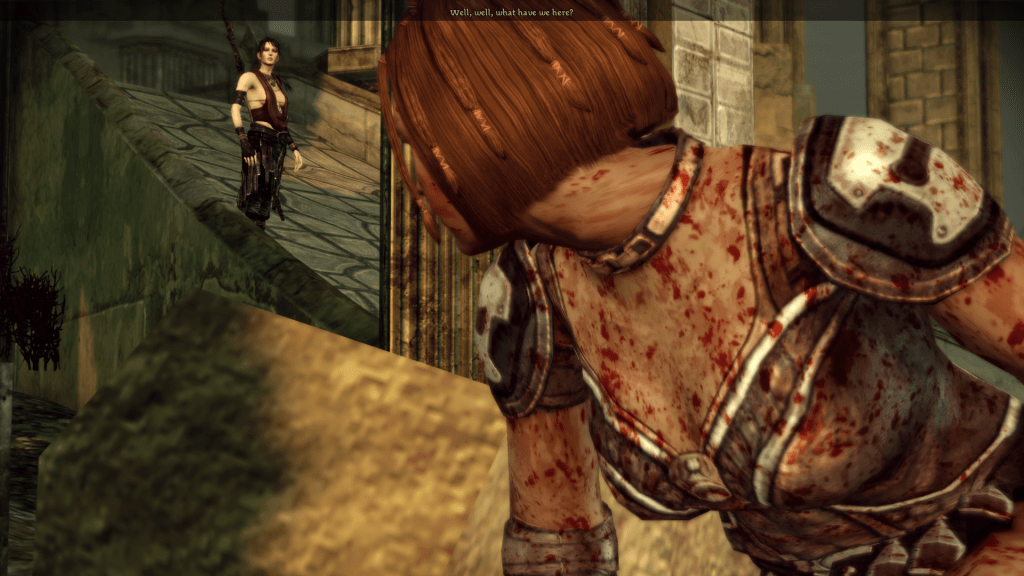
Speaking of plights, Dragon Age doesn’t support Steam Screenshots. I found this out when I hit F12 to take one and the game crashed yet again! So I went to my backup option, Greenshot. It’s free, it takes screenshots, it even puts them in a folder for you. I typically only break this guy out when I’m playing games through Epic because that still doesn’t support screenshots. Unfortunately Greenshot, wasn’t really working while Dragon Age was in full screen. When I went to take a screenshot everything would freeze up for a few seconds. I’m noticing a trend here…
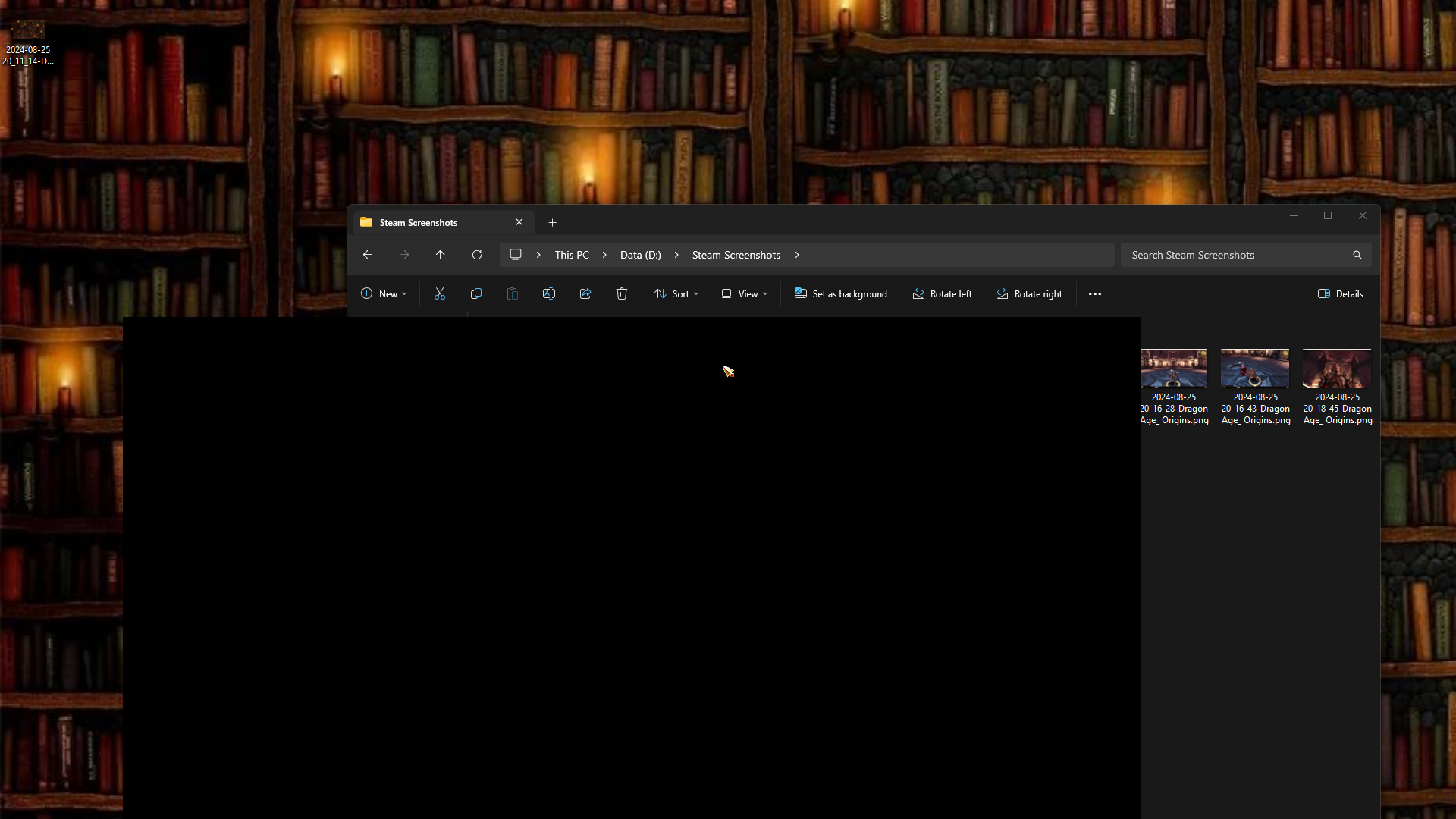
I thought maybe I could suck it up and play in windowed mode. Greenshot appeared to be working there. Appeared is the key word here. When I went to look at my screenshots they were not what I was expecting:


I was about to call it a day. But on my next launch of the game I saw the familiar green logo in the corner of my screen for the Geforce Experience overlay. I have only seen this thing in action once and that was last week where it kept saving clips of me being killed in Hunt: Showdown. I had no clue I could also use it to take screenshots and, surprisingly, it worked without an issue in full screen. It does save them to the Videos folder in Windows which I find weird but other than that it works!
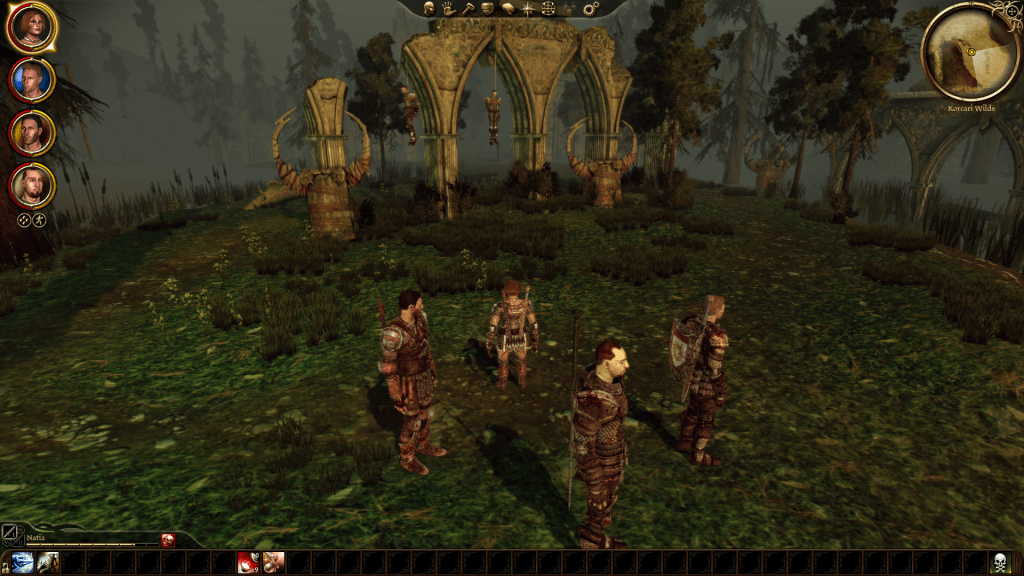
Which brings me to my last pain point with this aging title: It. Kept. Crashing! Well most of it was my fault, I’ll admit, trying to swap applications while it was running BUT it also crashed while playing a few times. I managed to get past the starting zone of Orzammar – I’m playing a dwarf rouge by the way – and to the surface to join the Grey Wardens. This about 1.5 hours in to things when the game crashed while I’m running around trying to find my next plot point. It had been a little while since I saved and even longer since the auto save saved so I found myself losing some time.
That’s when I remembered that these older titles usually have some sort of mod or stability patch that makes them run better on newer hardware/ Windows versions. So off to the internet I went to find one. The first Google result lead me to the 4GB LAA Patch for Dragon Age: Origins which let’s the game access more than 2GB of RAM. For the EA and GOG versions of Dragon Age there’s a little program that needs to be run on the Dragon Age .exe.
Since the Steam version is encrypted you need an unencrypted version of the .exe which I found on NexusMods. I found the guy’s video on how to install the patch confusing so I went to try and find a write up somewhere. Lucky for me, there was a 10 year old Steam thread that detailed how to to it, which in all honesty, was very easy. Now that I have it patched, the game hasn’t crashed once in the last few hours.
Hooray!
 Many Welps
I often wonder why no-one ever mentions Windows inbuilt screenshot function. I only discovered it myself after FRAPS stopped working, having tried lots of alternatives, all of which had various shortcomings.
Now I just hit Win+PrtScr in any game or application and it puts a screen grab in the Pictures/Screenshots folder. Works with pretty much everything and couldn’t be simpler. Also, the whole screen flashes momentarily when you do it, so you always know if it hasn’t worked for some reason if that doesn’t happen.
I’d prefer it if it was on a single key-press rather than two but it’s the easiest and most reliable option I’ve found. This is in Win10 of course. My PC doesn’t meet Win11’s exacting standards so I can’t say if it’s been carried over.
LikeLike
I definitely forgot that was a built in feature in Windows. I’m running Windows 11 and it looks like that still works. Though it does take a screenshot of both my monitors in one screenshot which isn’t ideal. I wonder if there’s a way to limit it to only one display. Probably worth looking in to.
LikeLike
You can press Alt-Win-PrintScr for a screenshot of only the active window. 🙂
LikeLike
Aha, that seems to work! 🎉
LikeLiked by 1 person
I was about to ask about Snip and Sketch, which I use like crazy, but I just realized that would require switching out of a full screen. Damn.
I wonder if the issue is with EA or Steam, since my copy of DA:O is on EA’s launcher as opposed to via Steam.
LikeLike